


Publishing tools can preserve decisions, revisions, and source records by giving every important choice a dated place to live: a project log, a file naming system, a source register, and a metadata worksheet. For a first paperback, record decisions that affect later files, such as trim size, bleed, paper type, ISBN use, cover dimensions, title wording, contributor names, and category or keyword choices. Treat AI and automation as assistants, not memory, and confirm current paperback requirements inside KDP before you upload final files.
Build the record before you build the book
Use tools to preserve the reasoning behind your publishing choices. For a first paperback, that record trail matters because one early decision can change the manuscript PDF, the cover PDF, the product details, and the files you may need months later.
Start with a simple project hub before you format the manuscript. This can be a folder on your computer, a cloud drive, a project management app, a spreadsheet, or a writing app with reliable export options. The tool matters less than the habit: every important decision gets written down, dated, and connected to the file or KDP field it affects.
Create four basic records. First, a decision log for choices and reasons. Second, a revision log for file changes. Third, a source register for images, fonts, quotes, permissions, and research materials. Fourth, a metadata worksheet for the exact title, subtitle, author name, description, keywords, categories, ISBN information, and pricing notes you plan to enter in KDP.
Do not wait until upload day to assemble this information. By then, you may be dealing with a cover size issue, a margin warning, a typo in the subtitle, or a mismatch between the manuscript title page and the KDP listing. A record system helps you solve those problems without guessing what happened.
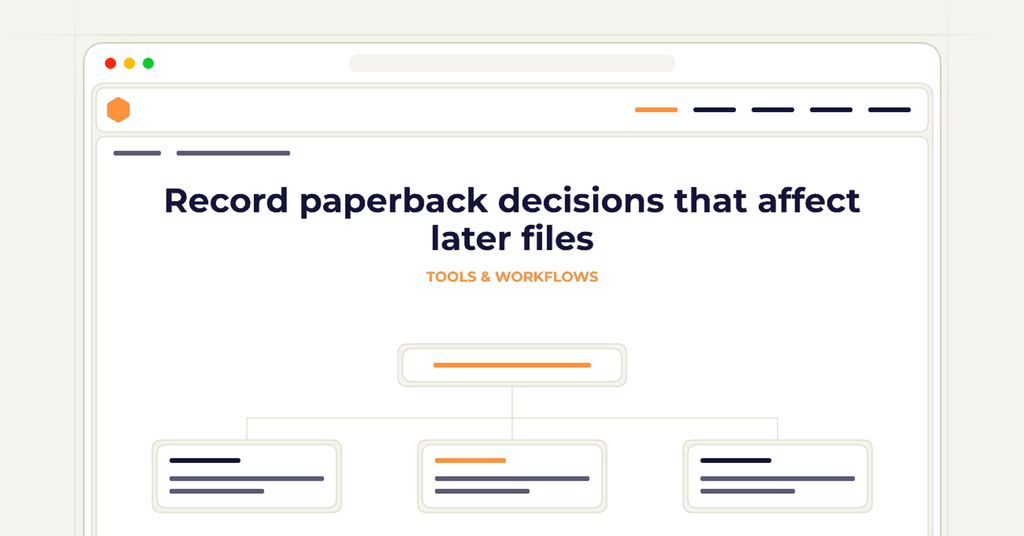
Record paperback decisions that affect later files
Record trim, ink, paper, page count, and marketplace as inputs to the production and cost decisions they actually affect. Record interior bleed separately as a file-preparation choice; it does not add a printing charge. Margins, headers, page numbering, and front matter belong to the interior construction record. Map dependencies explicitly so a changed setting triggers the relevant checks instead of an assumed update to every field.
For a first KDP paperback, put these items in your decision log as soon as you choose them: trim size, interior type, paper color, whether the book uses bleed, whether images extend to the edge, and whether the book will use a free KDP ISBN or an ISBN you own. Add a note explaining why you chose each item. For example, “6 x 9 selected because manuscript is narrative nonfiction and comparable books use this size” is more useful than “trim size done.”
Confirm current KDP requirements in KDP’s own help pages before you finalize. Amazon’s paperback manuscript and cover setup guidance can change, and your account may show current options during setup. Use KDP’s help topics on paperback manuscript formatting and paperback cover or print options as the source of truth when you set margins, bleed, trim, and cover specifications.
Keep the cover template connected to its accepted trim, paper and ink specification, and platform page count. Record cover bleed separately from the interior's bleed setting. If proofreading changes the count, review the spine and wrap calculation again. The record should identify the matching interior file, not merely a remembered page total or an older export with a similar filename.
Use file names and versions that tell the truth
Many first paperback projects become confusing because every file is called something like “final,” “final2,” or “realfinal.” That naming style does not preserve history. Use file names that include the project name, format, date, and version number. For example: BookTitle_Interior_Paperback_2026-08-25_v03.pdf or BookTitle_Cover_6x9_310pp_v02.pdf.
Keep editable source files separate from exported upload files. Your source files may include a Word document, InDesign file, Atticus project, Vellum file, Canva design, Affinity file, or Photoshop file. Your upload files are usually final PDFs for paperback interior and cover. Save both, because the PDF proves what you uploaded, while the source file lets you make future corrections.
A revision log should say what changed, not just that a new version exists. Useful entries include “corrected chapter 4 typo,” “changed trim from 5.5 x 8.5 to 6 x 9,” “updated copyright page ISBN,” “re-exported cover after page count changed from 286 to 292,” or “revised back cover description to match KDP description.” These notes protect you when you need to update the book later.
If you use software with version history, such as a cloud document editor or design platform, do not rely on that alone. Platforms can change, accounts can be closed, and exported files may not retain enough context. Keep your own local or cloud backup of milestone versions, especially the version uploaded to KDP and the version approved for proof review.
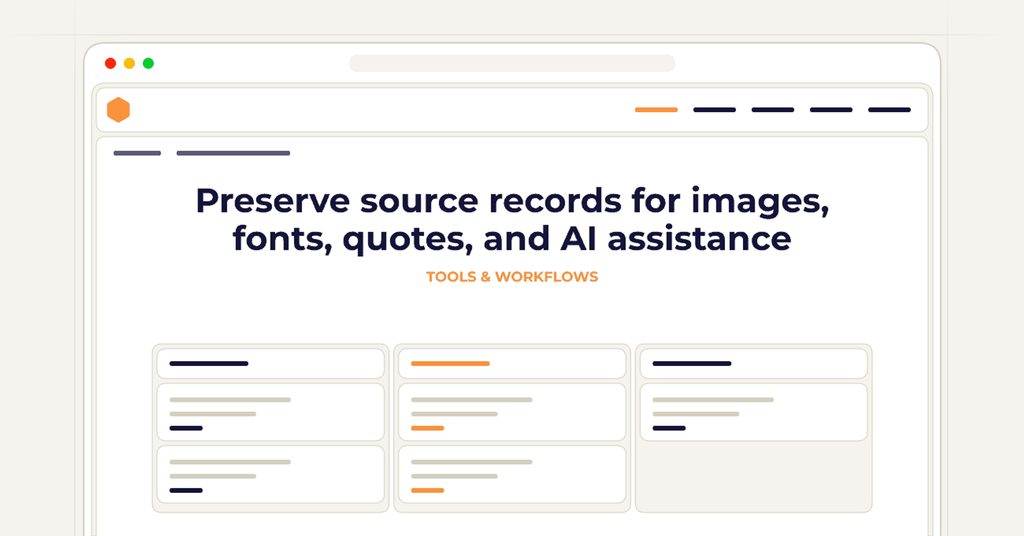
Preserve source records for images, fonts, quotes, and AI assistance
A source register is not only for academic books. It is for any paperback that uses cover art, interior illustrations, stock photos, icons, maps, recipes, song lyrics, epigraphs, public domain materials, fonts, or generated images. The goal is to know where each asset came from, what rights you have, and whether the permission covers print books sold through Amazon.
For each asset, record the file name, source URL or supplier, purchase date or license date, license type, creator name if required, and any attribution language. Save receipts, license files, permission emails, and screenshots of relevant license terms. If a license changes later, your saved record helps show what terms you relied on at the time.
Fonts deserve their own line in the register. Some fonts are free for personal use but not for commercial book production. Some allow print use but restrict embedding or logo use. Before using a font in the interior or cover, confirm that its license fits your paperback project and save the license record with the project files.
If you use AI tools, keep a practical AI assistance log. Record which tool was used, what it helped with, the date, and whether the output was edited, rejected, or incorporated. For example, you might note that an AI tool helped create a chapter summary, generate alternative back cover copy, or suggest proofreading queries. Do not let an AI draft, image, or suggestion enter the project without human review and a record of how it was used.
Keep metadata consistent with the files
Paperback metadata is not just marketing copy. It must stay consistent with the book files. The title, subtitle, series name, author name, contributor names, edition language, and description should not conflict with the cover, title page, copyright page, or spine. A mismatch can create delays or force late corrections.
Use a metadata worksheet before opening the KDP setup screens. Include the exact capitalization and punctuation for the title and subtitle, the author name as it appears on the cover and title page, the book description, planned keywords, categories, age or grade range if applicable, and pricing notes. If you revise one field, update the worksheet and any matching file text.
Record an ISBN with the format and edition it identifies. Before changing a published title, subtitle, or format, check whether KDP requires a new edition; updating a local worksheet and cover does not by itself make the platform change available. Log ordinary keyword and category revisions too, with their date and reason, so later observations can be tied to the actual setup.
Confirm current KDP settings inside your account when you publish or update. KDP’s available categories, keyword fields, distribution choices, print options, and pricing displays can change. Your worksheet should guide your entry, but KDP is where you verify what is currently allowed and what must match the uploaded files.
Make review notes part of the workflow
Proofreading and proof review generate many small decisions. Without a system, you may fix a typo in one file but forget to update another, or you may accept a formatting change without remembering why. Use a review tracker for all comments from editors, beta readers, proofreaders, and your own print proof inspection.
For a first paperback, separate content edits from production corrections. Content edits include sentence changes, factual clarifications, chapter order, and missing information. Production corrections include widows and orphans, page breaks, running heads, image resolution, spine text, margins, and cover alignment. This separation helps you decide whether to revise the manuscript source, the layout file, the cover file, or KDP metadata.
When you order or review a proof copy, create a proof checklist. Note the upload date, file versions, KDP print settings, and any visible issues. If you approve the proof, record the exact interior and cover files approved. If you reject it, record why and what changed before the next upload.
This habit is useful after launch too. If a reader reports a typo, you can look up the live file version, correct the source file, export a new PDF, update the revision log, and upload with confidence. The alternative is opening a mystery file and hoping it is the right one.
Choose tools for export, access, and auditability
The best publishing tool for a first paperback is not always the one with the most automation. Choose tools that let you export usable files, preserve source documents, and see what changed. A tool that produces a nice file but traps your project history can become a problem when you need to fix the paperback later.
Before committing to a formatting or design tool, ask a few practical questions. Can you export a print-ready PDF? Can you save or download the editable source file? Can you duplicate a project before making changes? Can you label versions? Can you access the project if your subscription ends? Can you back up files outside the platform?
For AI tools, ask a different set of questions. Can you save prompts and outputs? Can you identify what was generated and what was written or edited by you? Can you avoid putting sensitive unpublished material into tools whose data practices you have not reviewed? Can you document the final human decision? These questions matter more than novelty.
A calm workflow beats a dramatic tool stack. For a first paperback, use only enough tools to preserve the record and produce clean files: a writing or layout tool, a design tool if needed, a spreadsheet or project tracker, a backup location, and KDP’s own setup screens and help pages for final confirmation.
Frequently asked questions
Clear answers for this publishing decision.
What records should I keep after my paperback is published?
Keep the final uploaded interior PDF, final uploaded cover PDF, editable source files, metadata worksheet, KDP print settings, ISBN record, proof notes, licenses, permissions, and the revision log. Also save the date of publication and any later update dates.
Do I need special version control software for a first paperback?
Usually no. A clear file naming system, dated folders, and a simple spreadsheet are enough for many first projects. If you are comfortable with version control software, you can use it, but the important part is being able to identify what changed and which file was uploaded.
How should I document a change to trim size?
Record the old trim size, the new trim size, the reason for the change, the date, and every file affected. A trim size change can require new margins, a new interior PDF, a new cover template, and updated cover dimensions, so it should never be treated as a minor note.
Should AI-generated cover ideas go in the source register?
Yes, if they influence the final cover. Record the tool, date, prompt or project name, output used, edits made, and any license or usage terms you relied on. If the final cover uses stock art, fonts, or designer-created elements, record those separately too.
How often should I confirm KDP requirements?
Confirm KDP requirements before you build final paperback files, before you upload, and whenever you make a major update. KDP settings and help guidance can change, so your stored workflow should not replace checking the current information in your KDP account.
How do I get from an idea and a brief to an editable manuscript I can finish?
Write the brief first, generate a structure you can edit, then draft and revise the manuscript in reviewable sections so one change never overwrites work you already approved.
Start a book project from a brief